To configure your Apple Pay certification in your KNET Merchnat Portal for direct API usage purposes and Mobile SDKs, simply follow the steps:
In this article, you will get to know:
- What is an Apple Pay certificate?
- Why would you need an Apple Pay certificate for KNET?
- What does the Apple Pay certificate is used for?
- How to configure Apple Pay Certificate for KNET?
What is an Apple Pay certificate?
Apple Pay certificate is a certificate that would be generated from the Apple Developer portal, to be used for Apple Pay transactions.
Why would you need an Apple Pay certificate for KNET?
Apple Pay allows users to store payment information on their device and use it to quickly purchase goods and services on the KNET Page (Managed by PayTabs). Your page creates a payment request that Apple Pay transfers between KNET (Through PayTabs API), the Apple Pay servers, and your payment provider. Apple Pay leverages the device’s Secure Element to help protect the user’s payment information.
What does the Apple Pay certificate is used for?
KNET is using this certificate to decrypt the Apple Pay token, which is included in the payment request sent to KNET (Through PayTabs API)
The types of Payment requests that require this configuration include all PayTabs Mobile SDKs and the Apple Pay direct payment request, KNET ( different configuration steps ), while the Hosted Payment Page doesn't require this configuration since PayTabs is using its own Apple Pay certification in the Hosted Payment Page
Important Notes:
 - Apple Pay via KNET is only supported through the direct ApplePay API and Mobile SDKs ( kuwait Only )
 - It is currently not compatible with the standard PayTabs Hosted Payment Page
How to configure Apple Pay Certificate for KNET?
To configure the Apple Pay certificate, you need to follow the instructions below:
Be aware that Apple Pay MUST be enabled in your PayTabs profile in order to perform any payments using it, so kindly make sure to contact customercare@paytabs.com or your account manager requesting to enable Apple Pay.
- Generate CSR from KNET Portal.
- Create the Apple Payment Processing Certificate.
- Upload the Apple Pay Payment processing Certificate to KNET merchant Portal
- Enable Apple Pay Acceptance.
Generate CSR from KNET Portal:
The CSR (Certificate Signing Request) must be generated through the KNET Merchant Portal for the Kuwait instance only. For all other instances, the CSR should be generated from the PayTabs Merchant Dashboard. For more details, please check our solution article How to configure Apple Pay certificate in my PayTabs dashboard?- Login to the KNET Merchant Portal using the credentials shared by KNET ( Institution ID, Merchant ID, User ID, and Password).
- For the Test Environment, access the KNET testing merchant portal (https://www.kpaytest.com.kw/).
- As for the KNET Production merchant portal (https://www.kpay.com.kw/)
- Navigate to Terminal Settings:
- Navigate through the merchant portal to Merchant Process → View Terminal
- Click on View under the Action column to open the Terminal
- Click on Apple Payment Processing Certificate under the Instruments & Actions tab
- Generate and Download CSR:
Under the form 'Apple Pay', you will find the following submenus:- Generate CSR (Link to generate CSR for Apple Pay)
- Download CSR (Link to download the generated CSR to be signed by apple)
- CER Upload (Merchant to upload the certification received from Apple as *.cer)
- Then, to process, use the Generate CSR option to generate a new CSR for Apple Pay integration
- Login to the KNET Merchant Portal using the credentials shared by KNET ( Institution ID, Merchant ID, User ID, and Password).
Create the Apple Payment Processing Certificate:
- Login to your Apple Developer Account to create the certificate.
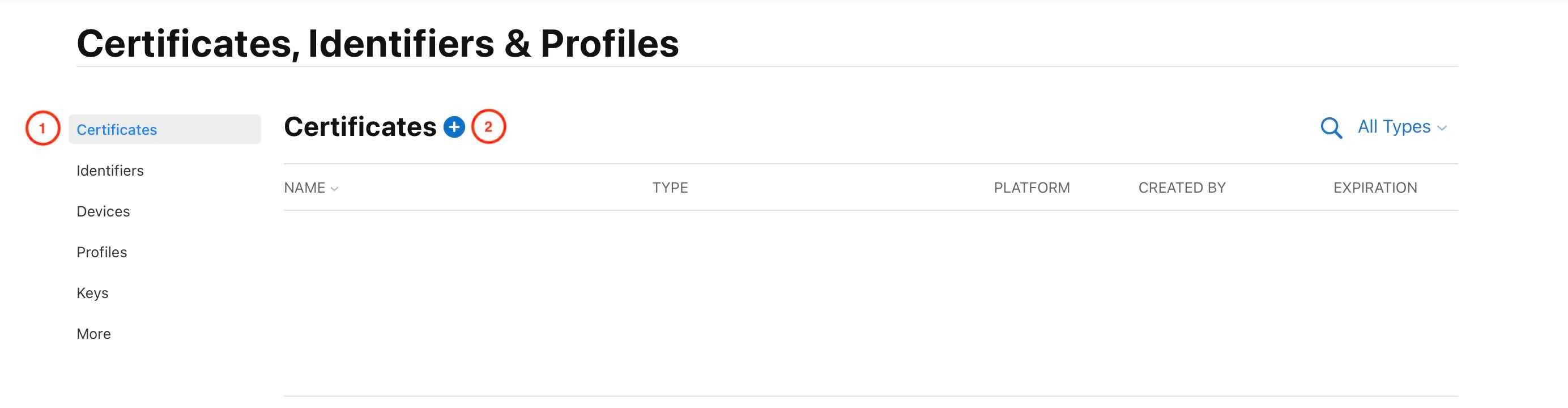
- Navigate to the Certificates, Identifiers & Profiles, then click on Add certificate button (+)
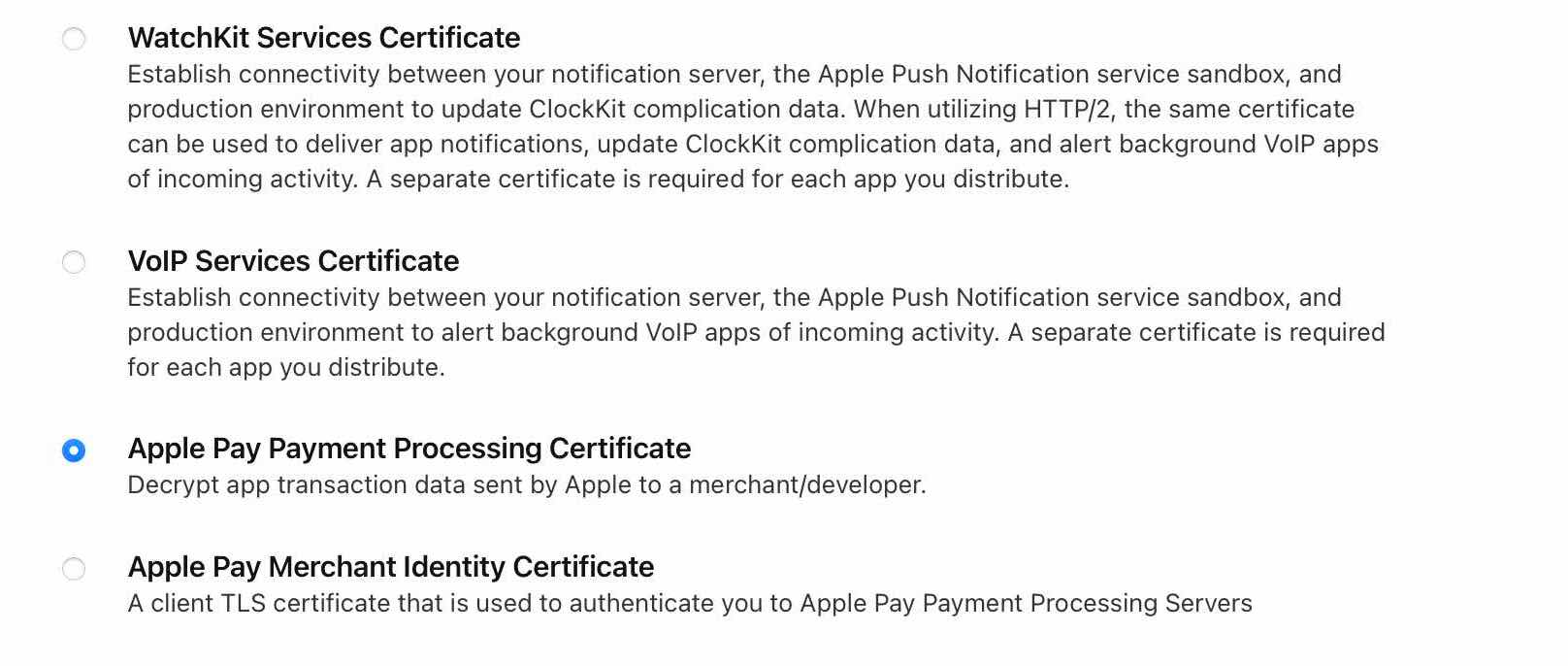
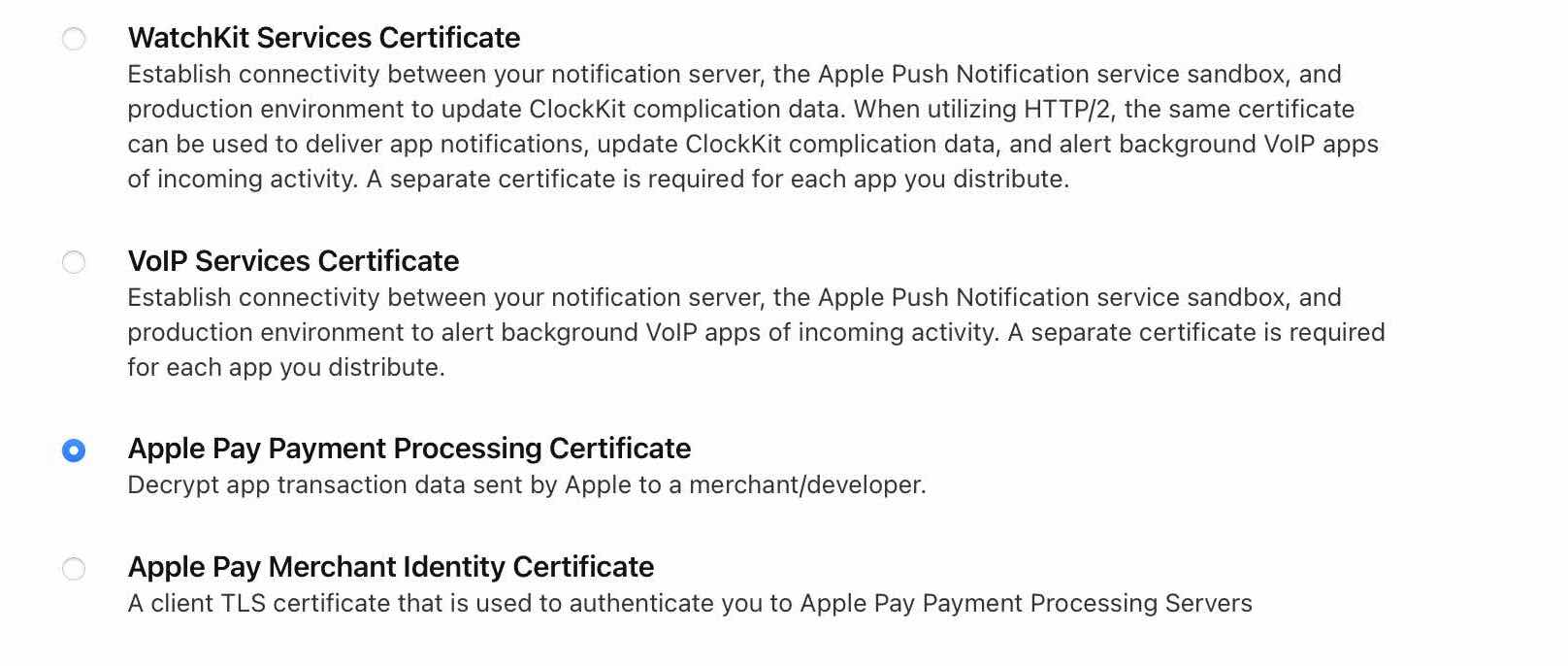
- Check the "Apple Pay Payment Processing Certificate" option, under the section Services, then click the Continue button.
- Choose the Merchant ID from the dropdown list, then click on the Continue button.
In case, you didn't have Merchant ID or whant to create a new Apple Merchant Identifier for the KWD account, please check the Create a merchant identifier link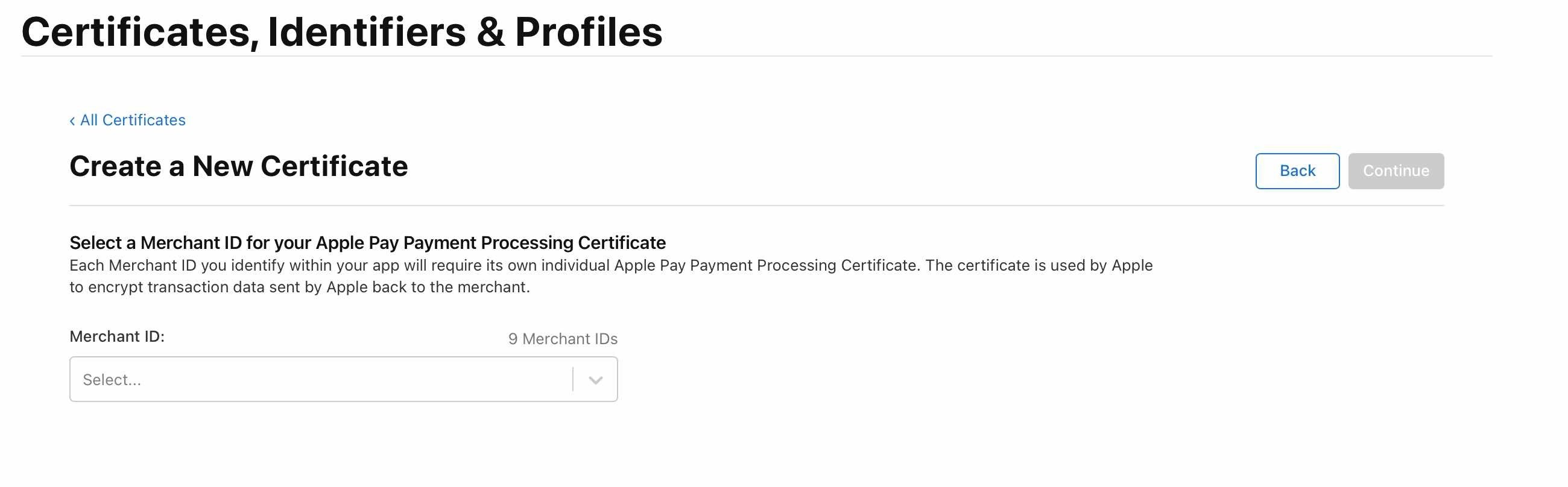
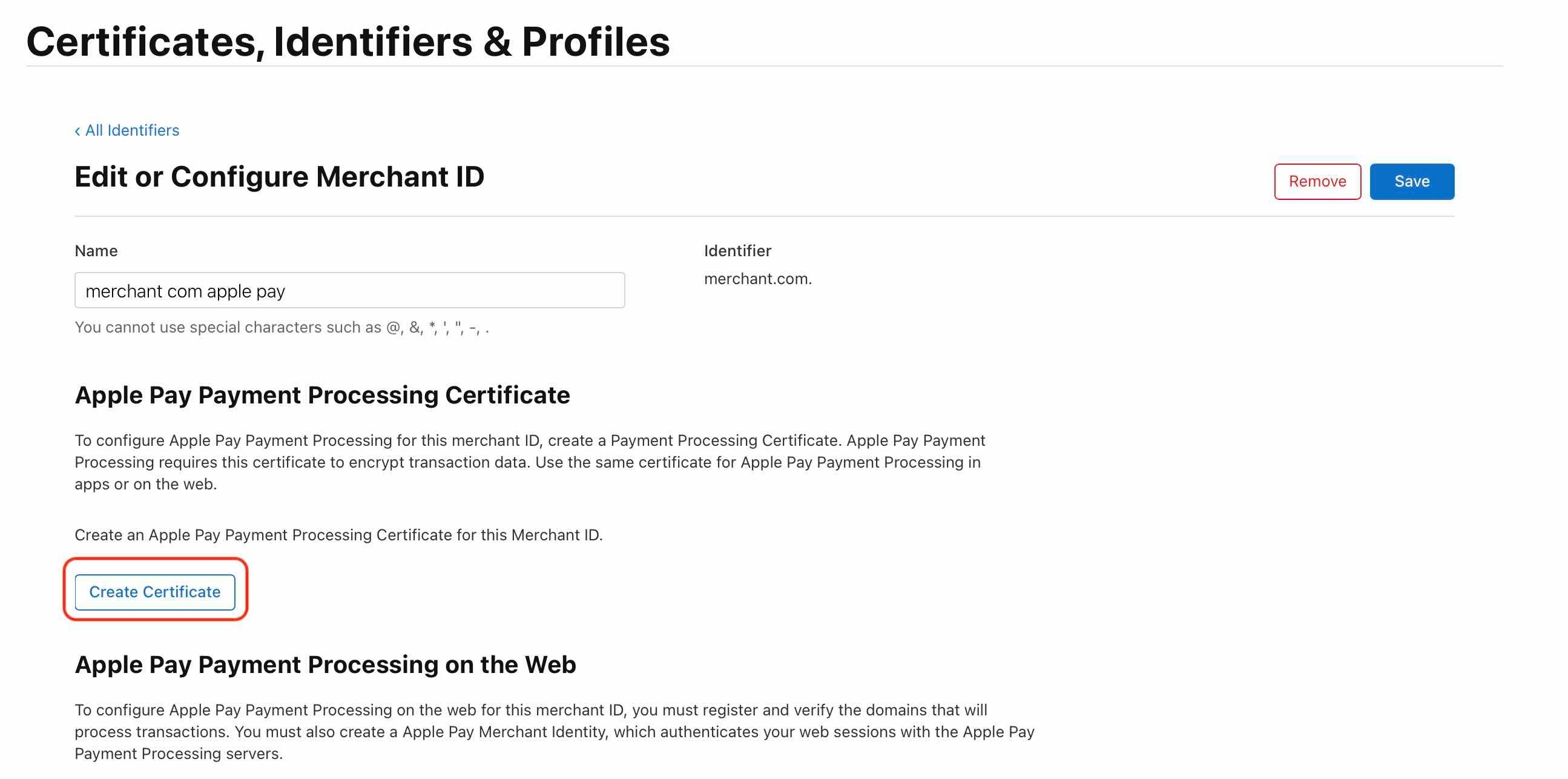
- Click on Create Certificate button under the section Apple Pay Payment Processing Certificate.
- Click on Choose File to select the CSR file you downloaded from the KNET Merchant portal, then click on the Continue button.
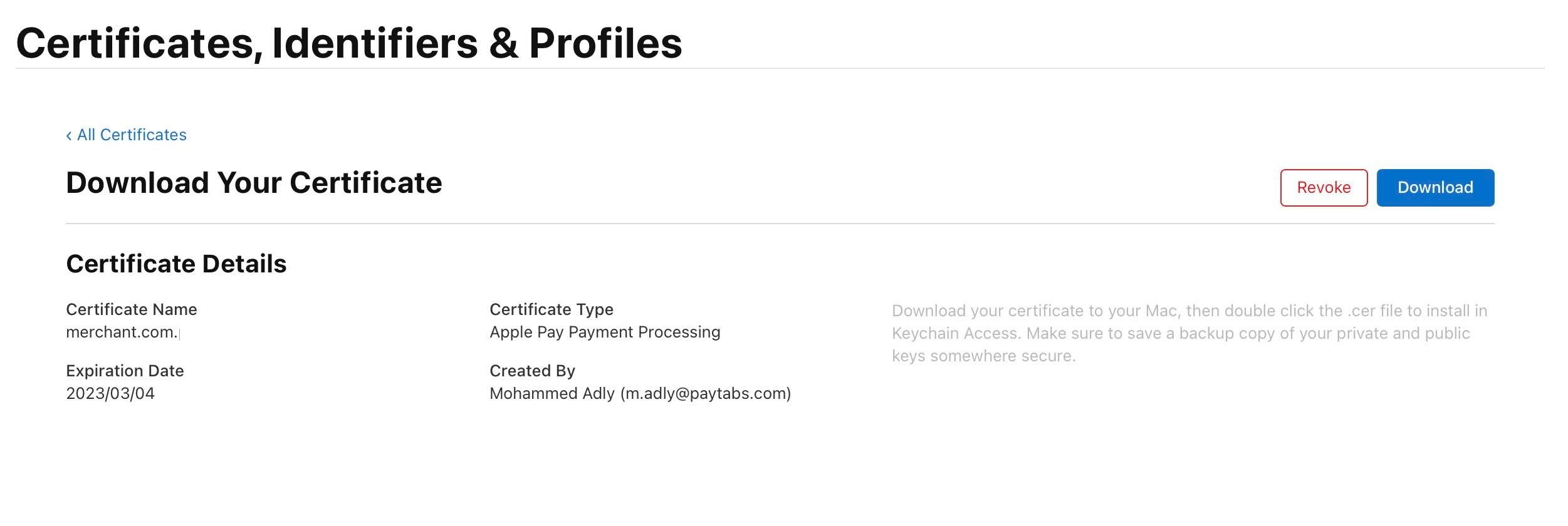
- Download the certificate to your Mac by clicking on the Download button.
Upload the Apple Pay Payment processing Certificate to KNET merchant Portal
- Login to your KNET Merchant Portal
- Navigate to the Terminal Settings, Merchant Process → View Terminal, then click on View under the Action column to open the Terminal
- After that, click on Apple Payment Processing Certificate under the Instruments & Actions tab.
- Finally, under the form 'Apple Pay', select the "CER Upload " menu item.
Enable Apple Pay Acceptance:
Once the CER is uploaded, you can proceed to enable Apple Pay acceptance via the following integration methods:- Direct Apple Pay API. Please refer to our technical documentation here: Apple Pay Direct Payment Request | PayTabs Technical Portal
- Mobile SDKs. For more details, please check our manual Native iOS SDK - Initiating the payment - Payment With Apple Pay.

Was this article helpful?
That’s Great!
Thank you for your feedback
Sorry! We couldn't be helpful
Thank you for your feedback
Feedback sent
We appreciate your effort and will try to fix the article